Most synthesizers and samplers these days come with hundreds of
preset sounds. When combined with the vast number of user-created
preset banks floating around the Internet and the array of expansion
cards available for many hardware models, you may wonder why anyone
would bother to learn how to program one of these beasts. The answer,
of course, is originality, and it's a lot simpler than you might think
to tweak your way to new sounds that will set off your next
masterpiece.
In this article, I'll take an operational approach to synthesizer
programming by exploring the quickest route to customizing factory
presets. Our starting point will be the General MIDI (GM) sound set,
which contains 128 sounds covering all of the basic categories. Most
synths and many samplers contain a bank conforming to the GM standard.
But if that doesn't include your model, you can still follow along,
because everything I cover here will apply in almost any context.
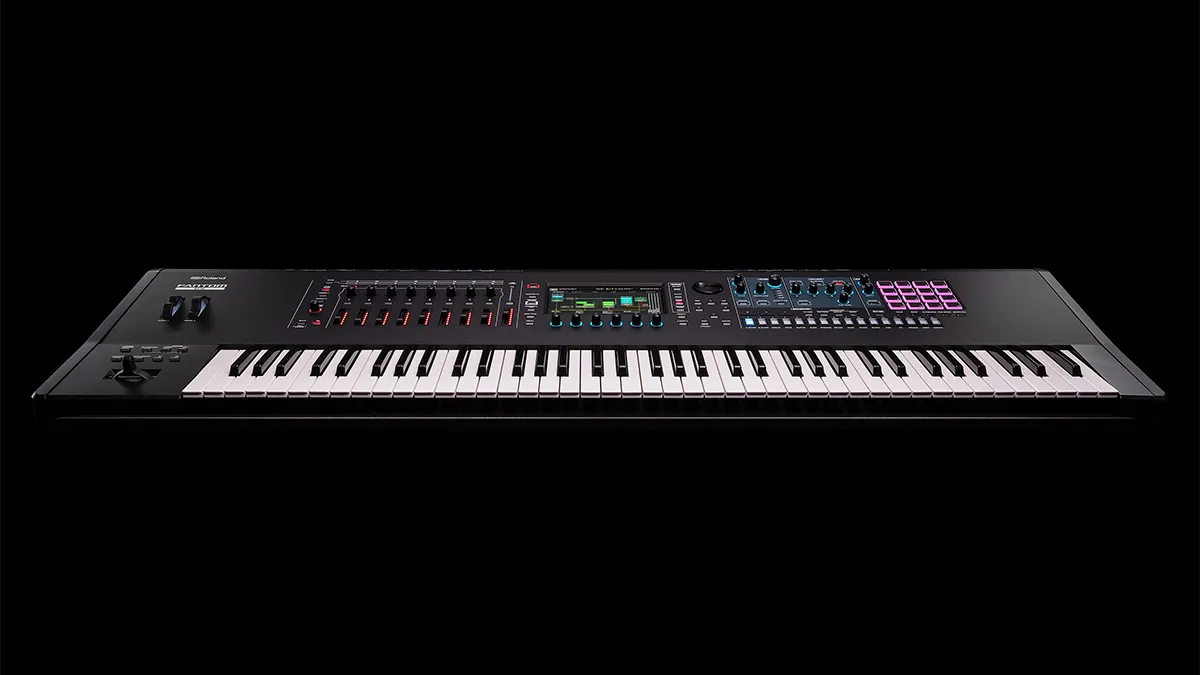
One thing you will definitely need is a programmable instrument of
some sort. That can be a hardware or software synthesizer or sampler of
just about any design. If you only have a preset synth (such as the
Yamaha CBX-K1XG), you may still be able to get some mileage out of it
if it allows MIDI or built-in controllers to alter basic preset
parameters. I'll refer to that option as we go along.
GETTING UNDER THE HOOD
The first thing you need to do — which is also often the
biggest hurdle to overcome — is to learn how to get into your
module's patch or program editor and find the various settings you want
to adjust. If it's a hardware synth of fairly recent vintage, it will
probably have an LCD, an array of buttons for navigating various modes
and menus, and one or more knobs for adjusting settings. If you're
lucky enough to have a large LCD screen or a software editor that runs
on your computer, things will be much simpler. If not, there's
unfortunately no way around stepping through multiple menu layers
trying to decipher cryptic parameter names like “VDA1 EG”
and “AT41 AL99 DT93.”
Needless to say, your manual is your friend — it's your only
way under the hood. Here are a few things to look for as you browse
through your unit's documentation.
If your synth has several modes of operation, find out how to select
the mode that plays a single sound on a single MIDI channel while
editing. That is often called Patch or Program mode. Once
in that mode, you will need to enter the program editor, for which
there is typically an Edit button. In the editor, you'll need to learn
how to step through menu pages to find the parameters you want to edit,
how to move among the multiple parameters that occupy the same page,
and how to change selected values. There are always buttons or knobs
dedicated to those functions, and using them will quickly become second
nature.
Most hardware models store a large number of factory programs in ROM
(that can not be edited) and have a smaller user area of RAM for
programs you create. You will need to dip into the manual to learn how
to move, copy, and save programs in the user area. Otherwise, all your
hard work will be wiped out when you turn the machine off. If you're
working with a software device, you need to remember to save your work
— preferably to a new location or using a new name so you don't
overwrite the original program.
FIG. 1: This figure shows five common envelope shapes. The ADSR shape (top) is the generic synthesizer envelope shape. The Piano/Guitar envelope is characteristic of plucked and hammered string instruments, the sounds of which are percussive and fade out over time. The Organ envelope has no variation in level; it is either on or off. The Bow/Wind envelope takes some time to reach full level and sustains there until the note is released. The Bouncing Ball envelope represents a multistage envelope that might be used for sound effects.
PUSHING THE ENVELOPE
The quickest and easiest way to change the character of a sound is
to alter its amplitude envelope. One way to think of an envelope
(also known as an “envelope generator” or “contour
generator”) is as a type of built-in automation that is initiated
whenever a note is played. Envelopes can be used for many things, one
of which is to control the amplitude (loudness) of the sound being
played.
Envelopes can be described in terms of stages consisting of
levels and times to reach those levels. The most common envelope
— and the kind that is usually used for amplitude — has
four stages, named Attack, Decay, Sustain, and Release (ADSR for
short). In its simplest form, an ADSR envelope has four user settings:
attack time, decay time, sustain level, and release time. The other
four settings are fixed: the attack level is the maximum envelope
level; the decay level is the same as the sustain level; the sustain
time is the time that the note is held down; and the release level is
zero. In short, when a note is played, the sound rises to its maximum
level then falls to the sustain level where it stays until the note is
released. The sound level then falls to zero in the release time.
A more intuitive way to picture an envelope is by its shape. Fig.
1 shows a generic ADSR envelope shape along with envelopes for
several familiar sounds. Software editors and hardware devices with
large LCDs usually allow you to edit envelopes graphically, making the
process much simpler. But even if you are consigned to doing it
numerically, it's well worth exploring the envelope settings your
equipment offers.
For
example, starting with a piano sound (GM preset 1) and reducing the
decay time produces a damped-string effect. Increasing the release time
simulates playing with the sustain pedal down. Reducing the decay time
to zero and increasing the attack time significantly gives a
reverse-piano effect. Increasing the sustain level to maximum and
increasing the attack time a little yields a bowed-string sound. (If
you're working with a preset-only synth, MIDI Control Change messages
72, 73, and 80 can often be used to control the release, attack, and
decay times.) Audio Example 1 uses four sounds derived from a piano
program by modifying only the amplitude envelope.
Modern synths, especially software ones, often extend the basic ADSR
concept in two ways: they provide more stages and they offer control
over the shape of each ramp. With the exception of the Organ, the
envelopes pictured in Fig. 1 all have curved ramps, which best match
the behavior of acoustic instruments.
Many synths allow MIDI Note Velocity to affect both the envelope
levels and times. That allows you to play much more expressively using
your MIDI keyboard. With piano sounds, for example, having the attack
level (or the overall envelope level) and the decay time increase for
higher Velocities gives a more realistic keyboard feel.
LESS IS MORE
In the early days of synthesis, a synthesizer's sound was
characterized by filters more than anything else. With the
much-expanded sound palette of today's models, the filter may be
slightly less important, but it is still a key element in sound
design.
Synthesizer filters are characterized by how they affect different
parts of the frequency spectrum. Lowpass filters (like the
treble control on your stereo) reduce the level of higher frequencies
while leaving lower frequencies unchanged. Highpass filters do
the opposite, and bandpass and band-reject filters reduce
the level of frequencies inside or outside of a frequency band. Lowpass
filters are the most common, and if your synth has only one type of
filter, that is what it will be. However, it's not unusual for a synth
to have a filter that is switchable among the four modes just
mentioned, or even to have several filters of different types that can
be arranged in series (operating successively) or
parallel (operating simultaneously).
FIG. 2: The passed (blue) frequency regions of the common resonant filter types are shown here. Frequency increases from left to right, and level increases from bottom to top in each filter graph.
The filter setting over which you will always have control is the
cutoff frequency. For lowpass and highpass filters, that is the
frequency at which the signal level is reduced by half. For bandpass
and band-reject filters, it is the center of the band. For lowpass and
highpass filters, there is usually a resonance setting as well.
That determines how much the signal is boosted (if at all) just before
the cutoff frequency. Bandpass and band-reject filters sometimes have a
Q setting that controls the width of the affected band. (If
you're working with a preset-only synth, MIDI Controller numbers 71 and
74 can often be used to control the resonance and cutoff.) Fig.
2 illustrates the four common filter shapes and the effect of
resonance.
Fixed
settings for filter cutoff and resonance allow you to color the sound
much as you would with tone controls or a graphic equalizer. However,
things don't become interesting (and synthy) until you start changing
those settings in real time. The most common tool for that job is an
envelope. Usually there is an envelope dedicated to the filter with
settings identical to those previously discussed for the amplitude
envelope. Audio Example 2 adds resonant-filter enveloping and other
modulation (more on that later) to the sounds in Example 1.
A filter's effect varies with the pitch of the sound being filtered.
For that reason, you will usually find a setting called keyboard
tracking or pitch tracking in the filter section of your
synth. It determines how much the filter cutoff frequency is affected
by the pitches being played. The keyboard-tracking range can typically
be varied from zero (no tracking) to two (cutoff increases twice as
fast as pitch). On some synths, it can also be inverted, causing the
cutoff frequency to move down as the pitch moves up.
Keyboard tracking may not seem like a big deal, but with careful
adjusting it can add life to a dead sound or it can smooth a raspy,
too-bright sound. It is also useful for very-high-resonance filter
effects in which you actually hear a tone at the filter's cutoff
frequency. For an example, listen to GM preset 122, which produces a
keyboard-tracking whistling effect using noise as a sound source.
IN THE BEGINNING
So far, we've looked at envelopes and filters for controlling the
contour and frequency content of a sound. That, of course, assumes we
have a sound to control. For that, your synth will have one or more
sound generators, most likely referred to as oscillators, tone
generators, or wave generators. The output of the sound
generators might be mixed and processed by a single filter and
amplifier (with a single set of envelopes), or they might each have
their own signal path including filters, envelopes, and amplifiers. In
the latter case, each signal path will probably claim a note from your
overall note count. (For details, see the sidebar “Notes, Layers,
and Channels.”)
Oscillators work in one of two ways: they generate
“synthetic” waveforms, or they play samples. (Although a
bit of an oversimplification, that covers most of the bases.) In either
case, you can select the waveform or sample to be played. In the case
of oscillators that generate waveforms, you'll have fewer initial
choices, but you'll have settings with names like symmetry, pulse
width, and sync that give you additional control of the
sound. In the case of sample players, you'll typically have a large
selection (in the hundreds) of sounds, but fewer ways to manipulate
them. Let's start with waveforms.
FIG. 3: Three standard synthesizer waveforms are pictured on the left with asymmetric versions shown on the right. In the case of the square wave, the asymmetry setting is called pulse width, and the waveform is alternately called a pulse wave.
THE SHAPE OF THINGS
Fig. 3 shows three standard oscillator waveforms on the left
(sine, triangle, and square) and the result of modifying their symmetry
(sine and triangle) or pulse width (square) on the right. Changing a
waveform's symmetry or pulse width alters its harmonic content, and
generally results in richer textures.
Oscillator sync, or hard sync, is another commonly
available waveshape-altering process. In that process, one oscillator,
called the slave, is forced to restart its waveform in sync with
another oscillator, called the master. With hard sync, the
master oscillator controls the pitch. Changes in the slave oscillator's
pitch setting don't change its pitch; rather, they cause its waveform
to be truncated at different positions, thus affecting its tone. The
mix of the master and slave oscillators in the audio output determines
how pronounced the effect is.
You can use the symmetry, pulse-width, and hard-sync settings on
your synth to greatly increase the variety of sound sources, but
applying those effects dynamically is even more interesting. For that
purpose, you'll typically find envelopes dedicated to the oscillators,
or at least a way to route the filter envelope to the oscillator.
You'll also almost certainly have a low-frequency oscillator
(LFO) available for modifying all those settings. (If you're using hard
sync, apply the envelope or LFO to the slave oscillator's pitch.)
An LFO is an oscillator that operates at frequencies that are below
the audio range — typically from 0 to 20 Hz — and can be
routed to change various settings. (Using one process to control the
settings of another is called modulation.) Because it is
operating at a low frequency, the changes it produces are directly
perceivable. If you modulate the same settings with an audio-rate
oscillator, you will perceive a change in the harmonic content of your
sound.
LFOs
generally have fewer waveform choices than audio oscillators, but
you'll always find a sine or triangle shape for vibrato and
tremolo-like effects. Generally, there will also be a pulse shape for
gating effects, ramp-up and ramp-down (sawtooth) shapes for repeating
attack and decay effects, and a random form for sample-and-hold
effects. Audio Example 3 is a fat chord with LFOs and envelopes applied
to symmetry, hard-sync slave pitch, and filter cutoff. LFOs can often
also be used to retrigger envelopes. Look for that feature on your
synth — it will open up a world of step-sequencing
possibilities.
If your synth's sound generators play samples, you will not find the
same shaping controls that are available for waveform generators.
However, you will probably still find settings for pitch modulation by
an LFO and envelope, and you will have a larger variety of sounds to
start with. Both sample and synthesis-based devices also typically
offer one or more effects processors for modifying sounds. See
“Square One: Multi-Effects 101” and “Square One:
Multi-Effects 102” in the June and July 2000 issues of EM
for a detailed introduction to effects processors.
STEPPING UP
You've now had at least a brief look at most of the
sound-programming features you're likely to run into on the majority of
commercial hardware and software synthesizers. Getting into and finding
your way around the synthesizer's program editor is the hardest part.
Once you've taken the time to do that, a nearly unlimited sound palette
opens up to you, and the best part is that they're your sounds.
Beyond programming new sounds, a familiarity with the inner workings
of your synth provides a broad range of performance possibilities.
Instruments with keyboards and onboard controllers (wheels, joysticks,
ribbons, and so forth) usually allow you to route those controls to
many of the settings provided in the editor. Most synths let you route
external MIDI Control Change messages similarly. Whether you use your
instrument live or with a MIDI sequencer, you can increase its
expressiveness by taking dynamic control. So find the hood latch, get
busy, and don't forget to save your work.
Len Sasso can be contacted through his Web site at www.swiftkick.com.
NOTES, LAYERS AND CHANNELS
Most hardware manufacturers proudly advertise their unit's
polyphony, which is the number of notes the device is capable of
playing simultaneously. Though that is a valuable measure of a unit's
capabilities, and more is definitely better, it is important to be
aware that playing just a single note can potentially absorb multiple
notes of your synth's polyphony. That can happen in several ways.
On many models, a single patch can use two or more sound generators
in such a way that each individual sound source accounts for one note
of the overall polyphony. For example, if you play a patch that
consists of four sound generators on a device that offers 64 notes of
polyphony, you'll only be able to play 16 simultaneous notes for that
program. To improve things, many models have smart
“voice-management” routines that, for example, release a
note when its amplitude envelope has fallen to zero, even though the
note is being held.
Most models also have modes designed to let you layer programs and
to play different programs on different MIDI channels. Those usually go
by names like Combi, Multi, and Performance. Needless to say, those
modes quickly consume the available notes. If you layer two programs in
the above example, you're down to eight available notes of polyphony,
and many synths can layer four or more programs.
Finally, if you're using a sequencer with your synth and sequencing
parts on several MIDI channels, keep in mind that the number of
available notes is split among the different channels. Fortunately, all
synths are smart enough to dynamically allocate the polyphony, so you
don't have to decide in advance how many notes to assign each channel.
However, it's important to keep the polyphony in mind. Otherwise,
adding a lead track on a new MIDI channel can result in notes
unexpectedly dropping out of your lush string pad.
Beyond carefully tracking the note count in your sequences and each
of your programs, many synths offer options for controlling what
happens when you reach the polyphony limit. Some models allow you to
reserve a minimum number of notes for a particular MIDI channel.
Another option is voice priority (often called note-stealing
priority or dynamic voice allocation). That allows you to
specify what happens when playing a new note exceeds the limit. Typical
choices are last-note priority (earliest played note is turned
off), high- and low-note priority (lowest or highest note
is turned off, respectively), and loudest-note priority
(lowest-level note is turned off).