Print Page
Master Class – DJing for Musicians
5/23/2012
 |
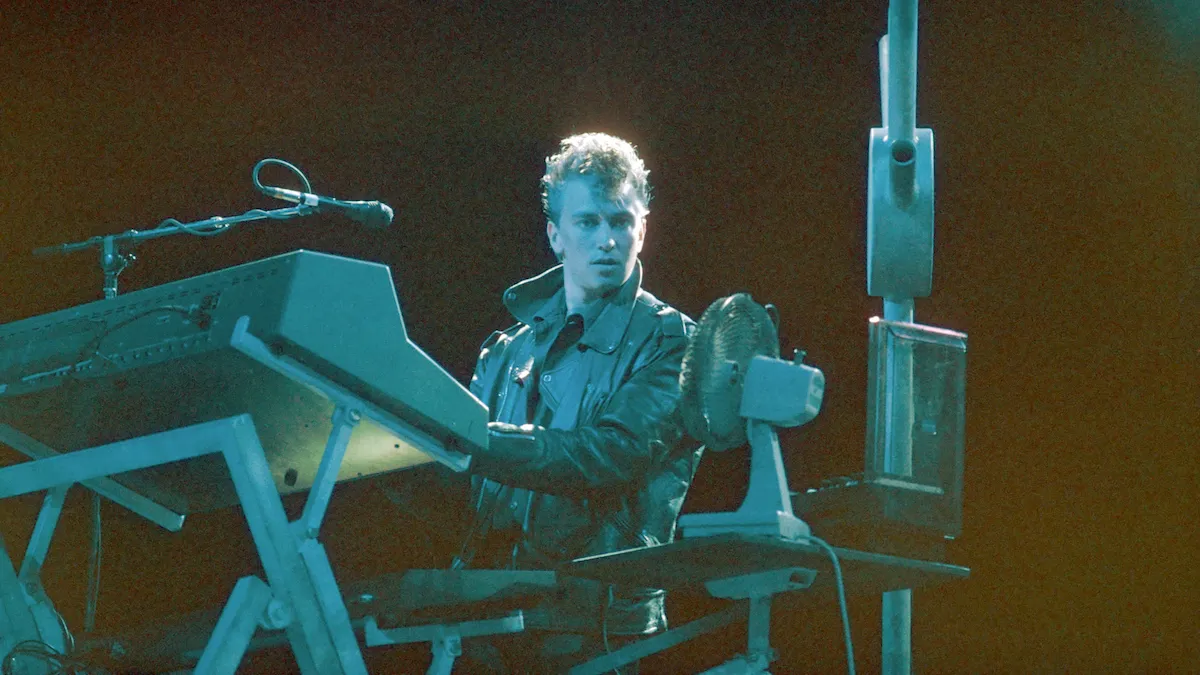
| Tommy Lee, the ultimate musician turned DJ, performs at the HolyShip!! music festival in January. |
Hey, Musicians: Forget this “DJs are the competition”
concept. That’s like guitar players saying
drummers are the competition. Sure, they play
different instruments, but they’re aiming for the
same goal—a crowd-pleasing performance. And
if you hadn’t noticed, the DJ world is getting
more and more into production/performance
values. We’ll let the DJs decide whether they
want to be called “DJs” or “producers,” but
some are indeed very much like producer/
performers as they juggle multiple audio
sources, sample and re-sample, loop on the fly,
apply effects, jam along with other instruments,
and even sync up with guest DJs to provide a
new angle on collaboration (and “duets”).
If you’re a musician who knows how to
record and mix, you can capitalize on that experience
to jump-start the DJ experience, and I’ll
help get you started by explaining the process of
organizing a music library, and going over a DJ
controller’s basic controls. We’ll assume you’ll
be taking the computer-based/software route;
working with vinyl is a whole other world.
Go to the Source The music library is the
core of any DJ’s act. Increasingly, iTunes is
becoming a sort of de facto standard for music
libraries, as most DJ programs can access it
and bring your music into the program. You
can designate particular folders where the program
should look, or use “default” folders like
the Music folder in the Mac, or the My Music
folder in Windows’ Music Library; but there
are some compelling reasons to use iTunes.
Portable USB or FireWire drives are ideal
for storing your library, as a terabyte can hold a
bazillion MP3 tracks. (Don’t skimp on the data
compression—use at least 192kbps.) But it’s all
about having the right track at the right time,
so create a good inventory of crowd-pleasing
“anthems,” newer hits, and just to keep things
interesting, some rock and soul. Of course as
a musician, you can create your own tracks.
These might be complete pieces of music, or
just something like a drum groove you can
have “on standby” in a software deck to keep
the groove going while you cue up the next
track, or crossfade between two tracks.
You need to know your material, but DJ software
incorporates search and sophisticated database
functions that typically categorize by fields
like track title, format (WAV/AIF/MP3/AAC/
WMA), artist, bpm, key, genre, rating (mark the
ones that really get the crowd going!), comments,
and keywords for searches. Some have additional
data like import date, so you can find (for example)
only the music you’ve added recently.
 |
| Fig. 1. Traktor’s Preferences tell it where to find all the crucial folders for locating music, playlists, and the like. |
The bpm figure usually comes from automatic
analysis. Dance music’s constant rhythm
makes it relatively easy to detect tempo, but
the process is computationally intensive, so
analyze your music in advance of the gig. It can
take a while with a packed hard drive, but once
your tracks are analyzed, you don’t have to do
it again. This data is also needed by the software
to do automatic beat-matching.
And remember—your music library is on a
hard drive. Hard drives fail—backup is good.
Getting Deeper into iTunes DJs are not
immune from the Mac vs. PC debate, but I prefer
dedicating a laptop to DJing; for that purpose,
Windows machines have a cost advantage and
are more commonly available in case of damage.
Mac fans needn’t have Windows-phobia;
once you get into your DJ application of choice,
it doesn’t really matter which platform you’re
using, as the computer simply becomes a “DJ
appliance.” Although this article is based on Windows
and Native Instruments’ Traktor Pro with
S2 controller, the principles apply to Mac setups
with other hardware/software as well.
As iTunes is a consumer-oriented product,
it’s heavy on the “it just works” philosophy,
and handles file organization. While this is
great for most users, it’s an issue if you want to
depart from its intended use for music management. For example, I do all the track development
and rehearsals on my desktop computer
instead of a laptop, as the desktop has a
more comfortable working environment (dual
monitors, more ergonomic keyboard, etc.)
and is also set up for creating and processing
the tracks that I create. But I use a laptop for
performance, which means the whole setup
has to be easily transportable from desktop to
laptop. Furthermore, although I’ve never had
problems with laptops live (knock on silicon!),
there’s always a first time, so everything has to
be easy to back up, and if necessary, installed
on another machine at a moment’s notice.
These considerations matter when setting up
an iTunes music library for DJing.
iTunes is very specific about locating files,
and maintains a database that keeps track of
your music files and their paths. People often
just install iTunes using the defaults, which on
the Mac is the iTunes folder that lives in the
Music folder. In Windows 7, installing iTunes
places the iTunes folder in the path Libraries
> Music > My Music. This is located in the C
drive and the iTunes folder includes the iTunes
Media folder, so once you start loading the
media folder with audio (and maybe video as
well), this content can outgrow your C drive’s
capacity. All links within iTunes are referenced
to the paths in this drive, so trying to move the
iTunes Media folder to a different drive will
break those links. Unless you enjoy re-linking
everything (you don’t), this is not a good idea.
(Note that there’s also an iTunes folder in the
Programs folder, but this is a small folder containing
resources, an iPod updater, etc.)
Planning Ahead with Your Music Library
For the most flexibility, plan ahead when
you first set up an iTunes music library for DJing.
The following instructions assume that you’re
using the latest version of iTunes—at least iTunes
9—and that you’re using the same operating
system (e.g., Windows 7) on all of the computers
with which you want to use iTunes. This isn’t
essential, but it will make life easier.
|
| Fig. 2. Traktor Pro 2 maps much of what you see to the hardware controls in NI’s S2 (and other NI controllers, as well as some Traktor-specific controllers made by other manufacturers such as Numark). The two virtual decks are outlined in gray, with common controls toward the middle and a browser along the bottom.
|
Download iTunes and install it with the default
settings. Later on we’ll create a separate,
“transportable” drive and move some of the
folders to non-default locations. Dedicate an
external drive (USB or Firewire) to the iTunes
Media folder, which contains all your music
and takes up the most space. A transportable
iTunes Media folder makes for easier backup
and mobility between computers. To hedge
your bets with Mac vs. Windows, format the
external drive with the FAT32 format, and import
your files using the MP3 format.
It’s important to give the external drive a specific,
fixed drive letter, because if one computer
has C and D drives, plugging in the external drive
will cause it to default to E. But if another computer
has C and D drives, and you plug in a
USB stick, which becomes drive E, when you
add the external drive. it will default to F. So
iTunes won’t find the media, because its database
is telling it to look for media on drive E.
I assigned the external drive a drive letter
of X so that no matter which Windows computer
it plugs into, it always shows up as drive X.
Here’s how to do this.
1. Connect your external hard drive and wait
until it’s recognized.
2. Go Start > Control Panel and double-click
on Administrative Tools.
3. Double-click on Computer Management.
4. Double-click on Storage.
5. Double-click on Disk Management (Local).
Wait for the disk information to load.
6. In the list of disk drives, locate the removable
drive.
7. Right-click on it and choose Change Drive
Letter and Paths.
8. In the dialog box that opens, click on the
Change button. Choose X as the drive letter,
then click on OK.
9. The drive will now always be identified as
drive X.
Now we need to tell iTunes where to look for
its content.
1. Create a folder in drive X called iTunes
Media.
2. Open iTunes, and go Edit > Preferences.
3. Check “Keep iTunes Media Folder organized”
and “Copy files to iTunes Media
folder when adding to library.” This will
keep the music organized the way iTunes
likes when you add tracks to your library.
4. Click on the Change button for the iTunes
Media folder location.
5. Navigate to drive X, click on the iTunes
Media folder, then click on the Select
Folder button.
6. Click on the OK button in the Advanced
Preferences menu.
Importing CDs into iTunes will now direct
files to the iTunes Media folder on the X
drive. However, there’s another fine point
about iTunes: When you add new music to
your collection by importing it into the X
drive, iTunes (which is installed on your C
drive) adds the information to its database,
which is referencing the X drive. So, in my
situation, where I do my “development” and
rehearsals on the desktop but perform on the
laptop, it’s necessary to copy the iTunes folder
from the desktop C drive to the laptop C
drive. When I open up Traktor on the laptop,
it finds iTunes where it expects to find it in
the C drive, and the iTunes database finds the
iTunes Media folder where it expects to find
it, which is the X drive.
More About Transportability Traktor 2
Pro offers iTunes integration, but you have
to direct it to the iTunes database so it can
find all the music in the iTunes Media folder.
However, like other programs, it might
care about where to find things other than
your iTunes library. For example, Traktor
also has its own Root folder with playlists,
settings, mappings, and other personalization,
as well as a Samples folder that stores
samples used in the Sample Decks. Moving
the Root folder and Samples folder to
the same drive as the iTunes media folder
means that you can install Traktor on basically
anything, go into Preferences, specify
those file locations (Figure 1), and Traktor
will have the data it needs.
 |
Fig. 3. Part of NI’s S2 controller, which is
optimized for Traktor. The controls for one deck are in the lower left,
with the platter above it. Faders for the two decks, meters, and the
crossfader are to the right. The deck 2, effects controls, and most
common controls are not shown.
|
I also copy the iTunes folder located in
My Music (the one that contains the database)
to the X drive as backup. If I ever have
a catastrophic gear failure and have to start
fresh with a new computer, after installing
iTunes, the folder can be copied over to
the Music Library, and the database will be
ready to be referenced.
Playback on Deck Although vinyl is fading,
the deck lives on in two forms—physical
and virtual, which work together. Physical
decks are often CD-sized (or smaller) platters
whose sophistication depends on the hardware
controller. In most cases, the controller
can vary a track’s speed to make it easier
to beat-match and perform scratching and
pitch-shifting. Some models are touch-sensitive,
and with some models, pushing down on
the platter can also perform “braking.” Different
models work differently so read the specs
carefully and play with the controller to see if
you like its feel.
Consider each virtual deck (which exists in
the controller’s companion software; see Figure
2) as a separate track, but instead of playing
back linearly like a standard DAW, it’s more
dynamic because you can stretch it, transpose
it, set cue points that you can jump to instantly,
add effects, and mark off sections for looping.
The way you use these software decks—for
simultaneous playback, crossfading, layering,
and the like—is where part of the skill set for
today’s DJ comes into play. Software with four
virtual decks or additional “sample” decks is
becoming commonplace, yet most controllers
still have only two platters, so you may need
to switch nimbly among the virtual decks that
you want to control. (The S2 controller has a
button that transforms the Cue buttons into
sample deck trigger buttons.)
Beat-Matching and Monitoring The
physical controls for each deck create the DJ
experience (Figure 3). Here are some of the
highlights.
Cue points. These are particularly important,
as you can mark places where you want to
return to instantly, or from which you want to
start playback. You can generally store these cue
points within the songs in your music library.
Deck sync. Designate one deck as the master,
and sync the other one’s tempo to it. For
example, if the master is set to 127 bpm and
you drag a 123 bpm file into a synced deck, it
too will play back at 127 bpm. While some traditionalists
consider techniques like automatic
sync/beat matching the equivalent of pitch
correction for vocalists or quantization for
drums, these functions give the DJ more freedom
to focus on multi-deck mixing techniques,
adding effects, doing more creative transitions,
working with multiple decks, and the like.
Tempo slider. Even with sync, the master
tempo is still variable. For example, if your
master is at 128 bpm and you want to segue
into a 136 bpm track, you can increase the
tempo of the 128 bpm track slowly until it
reaches 136 bpm. The faster deck, if synced,
will follow the tempo as it increases.
Loop in/out. To loop a section, press the
In button at the beginning of the section, and
the Out button at the end of the loop. Most software
also lets you multiply or divide the loop to
lengthen or shorten it, respectively. As the music
has already been analyzed, the loop will quantize
to the beat, making for a seamless loop.
EQ. The standard configuration is low, mid,
and high knobs for each deck. A common technique
is to pull back the lows and then, on the
beat, hit a cue point and have the lows come
crashing back in.
Effects. You’ll typically find a wet/dry control
and a few knobs for variable parameters on
most controllers, but as effects become more
important, we’re starting to see dedicated effects
controllers. Native Instruments offers the
X1 controller, Pioneer recently introduced
the RMX-1000 Remix Station, Behringer’s
CMD modular DJ mixers offer effects control
modules, and Numark even offered the
NSFX accessory effects controller so their
older NS7 controller could control the effects
in Serato Itch. (The newer NS7FX has
this built in.)
There are plenty of other “bells and whistles,”
but the above are the basics. Master them,
and you’re well on your way to DJing.
Print Page