



“We talked about synths. She can get kind of nerdy”: Producer Carter Lang on meeting SZA and the making of Kill Bill
“I brought this weird Roland monosynth upstairs. It was an early ’70s primitive synth and we were bugging out over it”
“I brought this weird Roland monosynth upstairs. It was an early ’70s primitive synth and we were bugging out over it”

The late composer might have been known for his cutting-edge synth use, but he didn't agree with every studio breakthrough

Only one other producer has managed it

It seems that the streaming platform could be set to capitalise on the demand for multiple versions of viral hits

And it's certainly not the only piece of weird gear the iconic German band have used…

The DT-DX is based on the Raspberry Pi-powered MiniDexed DIY synth

An “accidental leak” was to blame, apparently

“Just don’t blame me - it’s not my fault,” she told the crowd. “Well, it’s partially my fault. But not entirely my fault”

Electronic artist, producer, gear explorer, film composer, and modular master Robin Rimbaud has been releasing music as Scanner and other acts for more than four decades. Here, he gives us a more electronic expert viewpoint on what separates a demo from the finished article…

This all-in-one room correction package means no more excuses for a muddy low-end
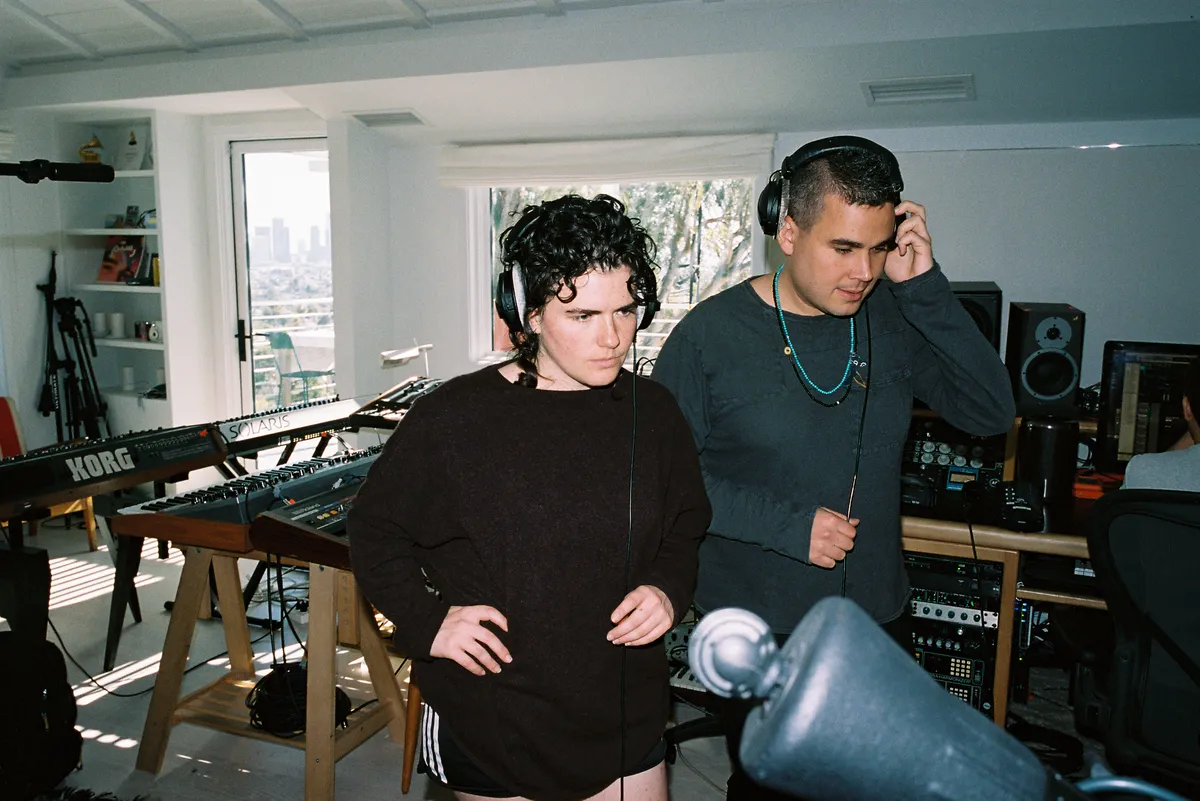
Solo artist, collaborator, songwriter, producer, remixer and drummer Georgia Barnes is also a self-confessed synth nerd, which she has every right to blame on her upbringing. Here she explains how she works within that electronic world with producers and artists including Rostam, William Orbit and Olly Alexander…

As their newest soundtrack collaboration, Challengers, gets set for release, the pair break down some of their most iconic work

An iOS-based homage to a virtual analogue classic

The Swedish developer launches a sample-based drum machine. We give it a shot

Well, Taylor Swift fans might disagree…

“There is such a magnificent world of ideas and harmonies inside that beautiful head of yours,” she gushes on his 18th birthday
“We are not responsible for the graphics, the sound engine, or anything else related to it”

Synthlation means you can pay nearly six figures for some of these synths (but also get most of their sounds for free)…

Six-track groovebox offers sample and synth engines and step modulation

